


You’ve probably heard some version of this already: “You need Google Search Console.”
That advice is usually correct and almost always incomplete.
If you run an HVAC company, dental practice, plumbing business, pest control company, roofing company, or med spa, you don’t need Google Search Console because it sounds technical. You need it because it tells you which searches put you in front of people who are ready to call, book, or become patients. Those are transactional searches. Terms like “air conditioning repair near me,” “emergency dentist,” or “roofer near me” are where the money is. Search Console is one of the fastest ways to see whether Google is even showing your business for those terms.
Most setup guides stop at verification. That’s where business owners get stuck. They verify the site, glance at a graph, and never use the tool again. That misses the point. If you want more booked jobs, Search Console needs to become part of how you monitor visibility, index new service pages, catch local SEO issues early, and build the data layer that supports both traditional search and AI-driven discovery.
Why Search Console Is Your Key to Winning Transactional Customers
A homeowner searches “emergency plumber near me” at 10:14 p.m. Your site appears, but the click goes to a competitor. A few days later, a patient searches “same day dentist” and your page never shows at all. Search Console helps you find those misses before they keep costing you calls, bookings, and revenue.
What business owners usually get wrong
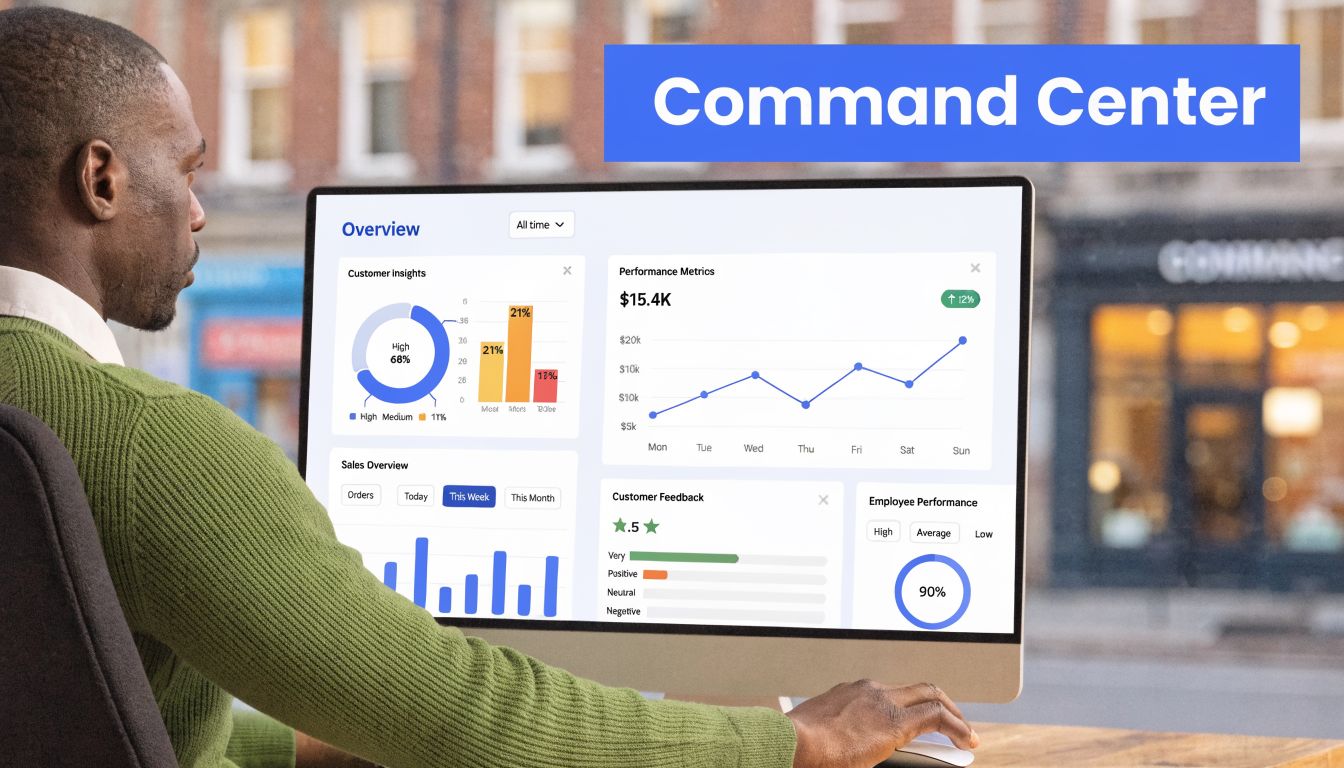
Business owners often verify the site, submit a sitemap, and stop there. That leaves the useful part untouched.
Search Console shows which queries put your pages in front of searchers, which pages Google has trouble indexing, and where impressions are building without enough clicks. For a local service business, those patterns point straight to money pages. If your “water heater repair” page gets visibility but no traffic, the title may be weak. If your “emergency dentist” page is missing from search, indexing or internal linking usually needs attention.
The mistakes get more expensive on multi-location sites. One clinic location may be indexed well while another barely appears. One city page may pull impressions for branded searches while another never gets in front of “near me” queries. Search Console gives you page-level evidence, which matters if you run an HVAC company, dental group, plumbing business, or any service brand with multiple locations and overlapping service areas.
Why this matters for transactional SEO
Transactional SEO focuses on searches from people who are ready to act. Search Console is one of the few free tools that lets you check whether Google is connecting your site to those moments.
Use it to answer questions like these:
- Which service pages appear for high-intent searches
- Which location pages are indexed and which are excluded
- Whether mobile searchers are seeing the pages that drive leads
- Which queries earn impressions but weak click-through rates
- Which terms sit close enough to page one to justify focused updates
That is the difference between generic traffic reporting and practical lead generation. Search Console helps you find the pages that can turn into booked jobs with the least amount of work.
If you want a broader primer first, OneNine explains what is Search Engine Optimization in plain English. For local service companies, Search Console is where that theory becomes visible in real search behavior.
Why local businesses need a more specific setup
Generic setup guides treat every business like a single-location brochure site. That is not how local search works.
A plumber with one office and ten service-area pages has different tracking needs than a dental group with five locations, separate location URLs, and branded searches for each practice. Search Console helps you spot whether Google is understanding those location relationships correctly. It also gives you a clean way to compare branded demand, service demand, and city-level visibility across the site.
That matters for map pack performance too. Search Console does not replace Google Business Profile, but the two work better together. GSC shows what your website earns in organic search. GBP shows how your business performs in Maps and local panels. When both point toward the same high-intent terms, such as “AC repair near me” or “emergency dentist [city],” you have a clearer path for improving local SEO across pages, profiles, and internal links. For a stronger foundation, review these ways to improve local SEO.
Why it matters beyond classic search
The same setup also supports future AI visibility. AI answers still depend on crawlable, indexable, well-structured pages. If Google cannot reliably access your service pages, understand your locations, or associate your site with transactional local intent, your business starts from a weaker position in both traditional search and AI-driven discovery.
Search Console gives you the baseline. It shows whether the pages that should produce phone calls are eligible to do their job.
Your First Critical Choice Domain vs URL-Prefix Property
Before you verify anything, make one decision correctly. Choose the right property type.
Many setups go wrong at this point. The wrong choice doesn’t always break Search Console, but it often creates fragmented reporting, duplicate properties, and confusion about which version of the site Google is tracking.

The simplest way to think about it
A Domain property tracks your whole property family. A URL-prefix property tracks one specific address.
If your business has a main domain, a www version, a non-www version, maybe a few subdomains, and plans to grow into multiple city sections, Domain property usually makes more sense. If you have one clean website and want the fastest simple setup, URL-prefix can be fine.
For home service businesses using subdomains such as city-specific locations, the Domain property is usually the better long-term choice because it covers all protocols and subdomains under one roof. By contrast, URL-prefix setups can require 4 to 6 times more properties for more complex sites, according to SE Ranking’s guide to setting up Google Search Console.
Domain Property vs. URL-Prefix Property for Local Businesses
| Feature | Domain Property | URL-Prefix Property |
|---|---|---|
| Coverage | Includes subdomains, protocols, and paths | Includes only the exact URL entered |
| Best for | Growing local brands, multi-location sites, subdomains | Single-location sites, CMS users who want a quick setup |
| Verification | DNS only | Multiple options like HTML file, HTML tag, Analytics, or Tag Manager |
| Reporting view | Consolidated | More segmented |
| Risk | DNS access can slow setup | Fragmented data if multiple versions exist |
When Domain property is the better move
A Domain property is the scalable setup.
Use it if your business has any of these:
- Subdomains by city: examples include city-specific sections or separate experiences for markets
- Mixed protocol history: older sites that still have both HTTP and HTTPS versions floating around
- Rebrands or migrations: where multiple URL variations may still attract traffic
- Expansion plans: if you expect to launch more service area pages, microsites, or subdomains
A lot of local businesses don’t realize that a clean reporting structure matters later, not just today. If your business grows, you want your search data in one place instead of split across multiple properties.
If you plan to add service areas later, choose the setup that won’t force a rebuild of your reporting.
When URL-prefix is the right call
URL-prefix isn’t wrong. It’s just narrower.
Use it when:
- You don’t control DNS access
- Your site is simple and unlikely to branch into subdomains
- You need a quick verification through your CMS
- You want to isolate one specific site section
A single-location dental practice on one standard website often fits this model well. If the entire business lives on one canonical HTTPS version and your website team wants the fastest path to verification, URL-prefix works.
The trade-off most owners overlook
Domain property gives you broader control. URL-prefix gives you easier setup options.
That’s the trade-off. If you choose convenience now, you may accept more reporting complexity later. If you choose scale now, you may need a DNS login and a little patience.
For most local service businesses that care about long-term local SEO, city targeting, and visibility across their full web presence, I’d rather start with a stronger structure and avoid cleanup later.
If your business is still working on the basics of getting discovered at all, this guide on getting your website on Google is a useful companion to the setup process.
Verifying Your Website Ownership Four Proven Methods
A lot of local businesses get stuck here.
The owner wants search data for terms like "emergency plumber near me" or "AC repair [city]," but the website sits with a former agency, the DNS login is buried in an old inbox, and nobody knows who can approve the right change. Verification is the gate. Until it is done, Search Console cannot show you the queries, pages, and indexing issues tied to booked jobs and phone calls.
There are four practical ways to verify ownership. The right method depends on who controls the domain, who can edit the site, and whether you are setting this up for one location or a business that may add cities, subdomains, or microsites later.
DNS TXT record
DNS TXT verification is the best fit for a Domain property and the setup I prefer for service businesses that plan to grow.
Search Console gives you a TXT record. Add it at your domain registrar or DNS host, then return and click verify. If you run multiple locations, separate subdomains, or plan to expand your footprint, this method keeps your reporting under one roof instead of scattering visibility across disconnected properties.
A few mistakes cause most of the delays:
- Enter only the root domain when you create the property. Leave out http, https, and www.
- Copy the TXT value exactly as Google provides it.
- Use the correct host field for your DNS platform. Some use
@, others leave the root blank. - Give DNS time to update before assuming it failed.
DNS can take a little patience. That trade-off is usually worth it. For a plumbing, HVAC, or dental group with more than one market, this is the cleanest long-term setup because it supports broader tracking and cleaner ownership management.
HTML file upload
HTML file upload is a strong option when a developer or website manager has access to the server but not the DNS account.
Google provides a small verification file. Upload it to the root directory of the site, make sure it loads publicly, then verify. Keep that file in place. If it gets deleted during a redesign, migration, or cleanup, verification can drop.
Use this method when:
- your web team can access hosting or the file manager,
- you want a stable method without touching DNS,
- and the site is not locked down behind a platform that blocks root file uploads.
I use this often when a business has agency-managed hosting and needs verification done fast without waiting on domain credentials.
HTML meta tag
HTML meta tag verification works well for many CMS-driven websites, especially WordPress, Webflow, and Squarespace.
Search Console gives you a meta tag to place in the <head> of the homepage. Save the change, clear caching if needed, and verify. This is often the fastest option for a single-location business where the owner or marketer has admin access to the site but no domain access.
The common failure points are simple:
- The tag is placed outside the homepage head
- A caching layer serves an old version of the page
- The wrong property version is being verified
- A theme, plugin, or app strips out custom head code
Orbit Media's beginner guide to Google Search Console walks through the setup basics, but the local SEO concern is what happens after installation. If your city pages, service pages, and location hubs are where leads come from, make sure the property you verify is the one you will use to review those pages later alongside your transactional keyword research process.
Meta tag checklist
- Add the tag to the homepage
<head> - Check the page while logged out
- Match the exact property version
- Confirm your CMS keeps the tag live after updates
A failed meta tag verification usually comes down to placement, protocol mismatch, or cache.
Google Tag Manager
Google Tag Manager is the fastest method if it is already installed correctly and you have the right permissions.
Search Console can verify through GTM when the container code is present on the site and published. This works well for businesses with an active marketing stack and no desire to edit theme files. It is convenient, but it is not my first choice for larger local SEO setups because GTM depends on an extra layer staying in place and properly managed.
Use GTM if:
- the container is already live
- the latest version is published
- you have admin-level access where needed
- speed matters more than long-term infrastructure
For one site and one location, GTM can be perfectly fine. For a growing business with multiple locations, DNS usually gives you fewer headaches later.
Which method should you use
Use DNS TXT if you want the strongest setup for multi-location tracking, subdomains, and future expansion.
Use HTML file upload if you have hosting access and want a dependable technical option.
Use HTML meta tag if your CMS makes header edits easy and you need a quick path.
Use Google Tag Manager if your tracking stack is already installed and you need the fastest no-code route.
If you are setting up Search Console to track the searches that turn into calls and appointments, choose the property type first, then verify with the method that matches your control over the site. Do not pick the method that looks easiest on paper if someone else controls the one system you need to edit.
Your First Actions in Search Console for Immediate Impact
A local service business usually has a small set of pages that drive most of the money. One emergency plumbing page, one AC repair page, one root canal page, one location page. Search Console should be configured around those pages first, because those are the URLs that turn searches into calls and booked jobs.

Submit your sitemap
Start in Sitemaps and submit the sitemap URL your site uses.
For a simple site, that may be sitemap.xml. For a multi-location business, a segmented sitemap setup is easier to manage. Separate location pages, service pages, blog content, and city pages if your CMS or SEO plugin supports it. That makes it easier to spot indexing gaps later, especially when one office is expanding into new service areas and another is not.
Google needs a clean path to your revenue pages. If new location URLs or service-area pages are buried in a bloated sitemap, indexing usually slows down and troubleshooting gets messy.
Inspect money pages first
Use URL Inspection on the pages that should produce leads first, not on privacy pages, old blog posts, or low-value content.
Start with pages like:
- Primary service pages: AC repair, drain cleaning, emergency dentist, water heater replacement
- Location pages: one page per office if you serve from multiple physical locations
- City or service-area pages: especially new ones
- Recently updated pages: pages where you changed titles, service copy, internal links, or schema
Check whether the URL is indexed, whether Google selected the canonical you intended, and whether the page is eligible to appear in search. If the page is live and ready, request indexing.
For local SEO, this step is more than routine setup. It is often the fastest way to push Google back toward a high-intent page after you update service content, add a new city, or fix thin copy on a location URL.
Open Performance and find buyer-intent queries
After indexing checks, go straight to Search results under Performance. Google’s overview of the report is covered in its Search Console performance report guide.
Focus on the combinations that expose local buying intent:
- Queries
- Pages
- Country
- Device
- Date
For service businesses, I usually filter to the target country, then check mobile first. Local customers searching for a plumber, dentist, or HVAC company often make that decision from a phone, not a desktop in the office.
What matters early is not raw traffic. It is pattern recognition.
What to look for first
- Queries with strong intent: “plumber near me,” “emergency dentist [city],” “AC repair open now”
- Pages getting impressions but weak clicks: usually a title, meta description, or intent mismatch problem
- Keywords sitting close to page one: these are often easier wins than chasing brand-new terms
- Location pages appearing for the wrong city modifiers: a common issue in multi-location setups
- Service pages pulling broad informational queries instead of booking terms: traffic without leads
If you need a better framework for sorting informational searches from terms that produce jobs, use these keyword research best practices.
Prioritize snippet fixes before full rewrites
Owners often overreact when a page underperforms. They rewrite everything, change the URL, and create more problems than they solve.
Start with the search result snippet.
If a page is already getting impressions for “emergency plumber near me” or “same day dental appointment,” Google has already connected that page to a valuable search theme. The first fix is usually the title tag, meta description, and on-page heading alignment. Make the offer clearer. Put the service and location intent closer to the front. Match the urgency of the query.
That is faster than a full rebuild, and it is often enough to improve clicks on pages that already have visibility.
Check whether your local page structure is creating overlap
This is a common issue in Search Console for contractors, dentists, and home service brands with several nearby cities or offices.
If multiple pages are showing impressions for the same service and the same metro term, you may have internal competition. One city page, one location page, and one general service page can all start competing for the same transactional keyword. Search Console helps you catch that early by comparing Queries and Pages side by side.
When that happens, clean up the targeting. Give each page a distinct role. One page should target the core service. One should represent the office location. One should support nearby city intent if you built a page for that market. That structure makes later GBP alignment and AI search visibility much easier.
A short walkthrough can also help if you prefer to see the interface in action:
Connect GSC to Your Local SEO Ecosystem
A plumbing company can show up for "water heater repair near me," get the click, and still lose the job if the rest of the local setup is disconnected. Search Console shows the search that brought the visitor in. On its own, that is useful. Connected to the rest of your local SEO system, it becomes a way to trace which searches lead to calls, form fills, and booked work.
Connect Search Console and Google Analytics
Start with Google Analytics. GSC tells you which queries and landing pages are earning visibility. Analytics shows what happens after the click. That matters for local service businesses because traffic quality varies a lot.
A city page might pick up more impressions for a broad term, but visitors may leave without calling. Another page may get less traffic and still produce stronger lead behavior because the search intent is tighter. That trade-off is common with local SEO. More visibility does not always mean more revenue.
Use the two platforms together like this:
- Search Console shows the query
- Search Console shows the landing page
- Analytics shows engagement and conversion behavior
- You decide whether the page needs better targeting, stronger trust elements, or a cleaner path to contact
For service businesses, that usually means checking whether the page puts the offer, service area, and contact action in front of the visitor fast enough on mobile.
Connect Search Console and Google Business Profile
For local SEO, the stronger connection is between your site and your Google Business Profile. Google does not give you a direct "link GSC to GBP" button, but the systems should support the same local signals. Your GBP categories, services, linked landing page, and office information should line up with the pages GSC shows as indexed and earning impressions.
That matters even more for multi-location brands. A dental group with three offices should not send every GBP listing to the homepage if each office has its own page, staff, reviews, and local intent. An HVAC company serving several cities should know which location or service area pages are being discovered in search, and which ones are sitting indexed but invisible.
Here is the practical check I use:
- Open the landing page linked from each Google Business Profile
- Confirm that page is indexed and eligible in Search Console
- Review the queries tied to that page
- Check whether those queries match the services and geography the GBP listing is supposed to support
- Fix mismatches before building more pages or changing categories
If a GBP listing points to a page that is weak, off-topic, or barely indexed, local performance usually stalls. The profile may still get impressions, but you make it harder for Google to trust the website side of the entity. If your listing setup needs work, review this guide on how to optimize your Google Business Profile.
Make location pages support map pack visibility
The goal is not to stuff city names into pages and hope they rank. The goal is alignment.
A strong local page matches the office or service area it represents. It uses the same business details shown in GBP. It explains the specific service offered in that market. It also gives Google a clean destination for branded searches, service-plus-city searches, and "near me" variations that often convert well.
Search Console helps confirm whether that alignment exists. If one office page earns impressions for the right terms and another does not, that is a signal to compare the content, internal links, indexing status, and on-page local relevance. If a page is crawled but not getting into the index properly, this guide on how to fix 'crawled currently not indexed' errors is a useful reference.
Why this setup matters for AI visibility too
AI search systems still depend on the same core signals. They need clear entities, crawlable pages, consistent local references, and pages that match real search intent. Search Console gives you the clearest operational view of whether that foundation is in place.
For a local service business, this is not reporting for reporting's sake. It is how you connect search visibility to the jobs that pay.
Troubleshooting Common Errors and Advanced Local Checks
Search Console setup usually breaks in predictable ways. The good news is that most failures are simple once you know where to look.
The bigger mistake is giving up after the first verification error or assuming a page “just needs time” when it has an indexing problem.
When verification fails
If DNS verification fails, the issue is usually one of three things:
- The TXT record hasn’t propagated yet
- The record was pasted incorrectly
- The root host field was entered incorrectly for the DNS provider
When HTML tag verification fails, the pattern is different:
- The tag is outside the head
- The cached page hasn’t refreshed
- The wrong protocol version is being verified
- The theme or plugin stripped the code
If GTM verification fails, check whether the container is published on the live site and whether the account you’re using has the right permissions.
Wait, then verify your implementation, then retry. Randomly switching methods usually creates more confusion than solving the original issue.
When pages won’t index
A verified property doesn’t mean every page will be indexed. At this point, business owners often get frustrated.
If a city page or service page isn’t appearing in Google, use URL Inspection first. Look at the indexing status, canonical signals, and whether Google can fetch the live page correctly. Then review the sitemap inclusion and internal links pointing to that page.
If you’re dealing with pages that show as crawled but not indexed, Up North Media has a practical walkthrough on how to fix 'crawled currently not indexed' errors. That’s a common issue on thin city pages, duplicate service variants, and weakly linked local content.
Advanced checks for local businesses
Once the property is working, there are a few checks worth making part of your routine.
Check indexing for city and service pages
Search Console is one of the best places to spot local page gaps. If one city page is indexed and another isn’t, don’t assume the content quality is identical just because the page template matches.
Look for:
- Pages excluded from indexing
- Duplicate or alternate canonical behavior
- Weak internal linking from navigation or parent service pages
- Location pages that exist in the CMS but not in the sitemap
This matters a lot for multi-location businesses. If Google indexes only part of your local footprint, your reporting and rankings won’t tell the full story.
Review mobile query behavior
A lot of transactional local searching happens on mobile devices. That means your mobile query patterns matter.
Use the Performance report’s device filter to compare desktop and mobile behavior. If important service pages get impressions on desktop but lag on mobile, review page speed, layout clarity, click targets, and whether the page answers local intent quickly enough.
Watch for drops after site changes
A ranking dip often starts after one of these events:
- A redesign
- A URL change
- A plugin or theme update
- A location page rewrite
- A sitemap or internal linking change
Search Console helps you narrow the cause. Compare dates. Check which pages lost impressions. Look for indexing changes or coverage shifts around the same window. A lot of “algorithm update” panic is self-inflicted technical damage.
A short local SEO troubleshooting checklist
Use this if you want a clean process.
| Check | What to review | Why it matters |
|---|---|---|
| Verification | DNS, tag placement, GTM publish state | Without ownership, you get no usable data |
| Sitemap | Inclusion of service and city URLs | Helps Google find key pages |
| URL Inspection | Index status and live fetch | Tells you whether Google can process the page |
| Performance filters | Queries, pages, device, country | Surfaces real local opportunities |
| Mobile review | Mobile-specific visibility and UX | Important for high-intent local searches |
The pattern that works
The businesses that get real value from Search Console don’t log in once a quarter. They use it as an operating habit.
They check whether the pages tied to revenue are indexed. They watch which transactional terms are gaining impressions. They catch weak CTR before it drags down opportunity. They use the data to improve local pages instead of guessing.
If you're serious about how to set up google search console the right way, think past verification. The setup matters. The habit matters more.
If you want help turning Search Console data into rankings, map visibility, and more booked jobs, Transactional LLC helps local service businesses build around transactional search terms, strengthen Google Maps performance, and create a cleaner SEO and AI visibility system without long contracts.