


You miss a call from a homeowner, then spend ten minutes bouncing between the Phone app, Google Voice, and the Google Business Profile dashboard, only to find that the log you needed isn't in the place you expected. This is the core issue with call history Google searches for service businesses, the data is split across products, and the path to the right record depends on how the call was placed.
For plumbers, HVAC companies, roofers, dentists, and other local SMBs, that fragmentation isn't just annoying, it can hide missed leads. Google has handled call history as a product-specific record rather than one universal timeline, so the way you verify a call in Android, Voice, or Fi changes from one tool to the next Google's Phone app guidance. If you're also comparing this with your broader local visibility setup, the basics of Google Business Profile still matter, because the call data story is tied to how Google surfaces and retires different features.
If you're trying to turn phone calls into booked jobs, the first priority is simple, find the right log before it disappears, then export it, then make it usable. For teams that want to pair call data with broader local marketing workflows, call tracking features are a useful reference point for how structured call data is usually handled outside Google's own tools.
Introduction to Call History Google Tools
A local service owner usually notices the problem at the worst time. A call comes in after hours, the voicemail is unclear, and by morning the person who answered the office phone swears it never rang. Then one person checks the Android dialer, another opens Google Voice, and a third looks for activity tied to the Business Profile, yet the full picture still feels incomplete. For SMBs that depend on booked calls, that gap creates real risk, because a missed inquiry can turn into a missed job.
Google's call-history tools are split by product, so there is no single timeline to trust. The Android Phone app records calls on the handset, Google Fi keeps its own history export path, and Google Voice stores a separate call log for Voice numbers. Google Business Profile matters too, because local visibility still affects how customers find and call your business, which is why a clear grasp of Google Business Profile belongs in any call-tracking workflow.
Why this matters for lead handling
Practical rule: if a missed call can become revenue, treat every Google call log as time-sensitive operational data, not casual history.
That mindset changes the workflow. A missed roofing lead, a patient inquiry, or an HVAC emergency call can disappear from attention fast when the team assumes Google stores everything in one place. Once that assumption is gone, the process becomes clearer. Check the right product, export the log, and keep your own record.
For businesses that rely on transactional search terms, the phone often carries the lead from search to sale. People search with intent, and in local services that usually means they want help now, not later. That is why local operators need a system for the call trail, not just a phone that rings, and why call tracking features are useful as a model for how structured call data can be handled outside Google's own tools.
Locating Call History on Google Platforms
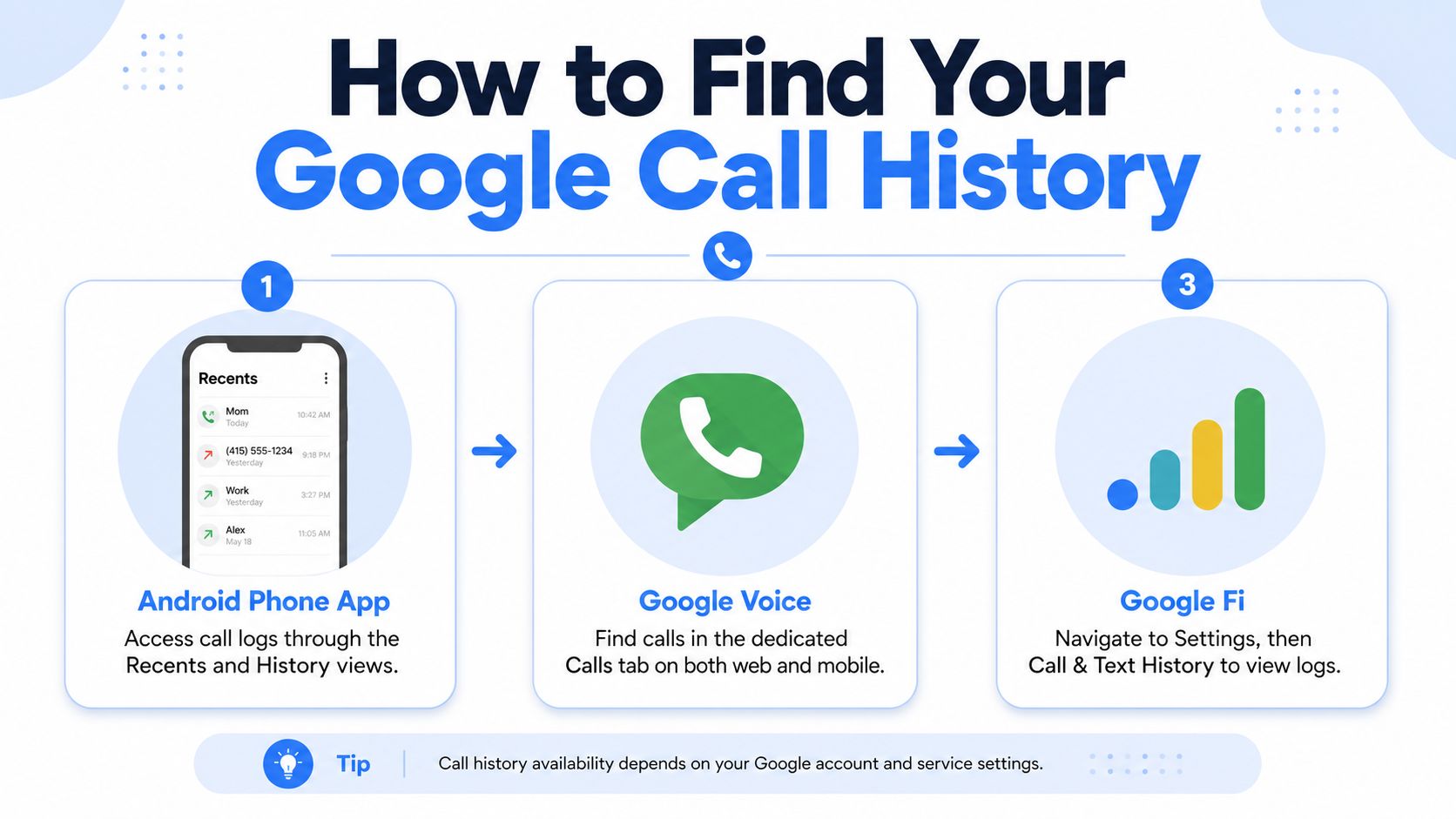
A business owner usually loses time here because the first check happens in the wrong place. A call that came through the native Android dialer sits in Recents on the handset. A Google Voice number has its own Calls log in the web app or mobile app. Google Fi keeps a separate history path inside its own settings, and that is where call and text history can be exported.
Android Phone app
The Phone app is tied to the device itself, so it only shows calls that reached that handset. Google also lets users clear the call log from the app if they want a fresh start or need to remove old entries Google's Phone app guidance. For a local business, that matters because the handset log may be useful for quick follow-up, but it is not a shared record your whole team can rely on.
A tap on a number inside Recents can also surface a more detailed History view. That helps when you need to see repeated contact from the same caller, compare missed calls with completed ones, or confirm whether a lead tried more than once before moving on.
Google Voice and Google Fi
Google Voice stays separate from the Android dialer, so the account tied to the Voice number has to be checked directly. Open Calls in voice.google.com or in the Voice app to review that number's call history, messages, and voicemail Google Voice guidance. That separation is useful for businesses that route a published number through Voice, but it also creates another log to watch if you are tracking leads across more than one line.
Google Fi works differently again. Open Settings > History in the Fi account and download the call and text history for the date range you need. If your business uses Fi for staff lines or overflow calls, this gives you a cleaner export path than trying to piece together records from the handset alone. For businesses still refining their Google setup, a practical next step is to review how to optimize Google Business Profile so the calls that come in from local search are easier to separate from other traffic.
Business Profile no longer holds the log
Google Business Profile no longer shows chat or call history, so local owners cannot treat it as a stored archive of customer calls Google Business Profile help. That change catches a lot of SMBs off guard because the profile still drives visibility, but the record of who called is no longer sitting there for later review. The frustration is similar to trying to resolve Google Meet history frustration when the product surface does not behave like a shared archive.
The practical fix is to start with the source of the call, then save the record before it disappears from view. That approach fits the fragmented way Google handles call history and gives you a better base for lead tracking, follow-up, and dispute resolution.
Exporting Call History and Ensuring Privacy
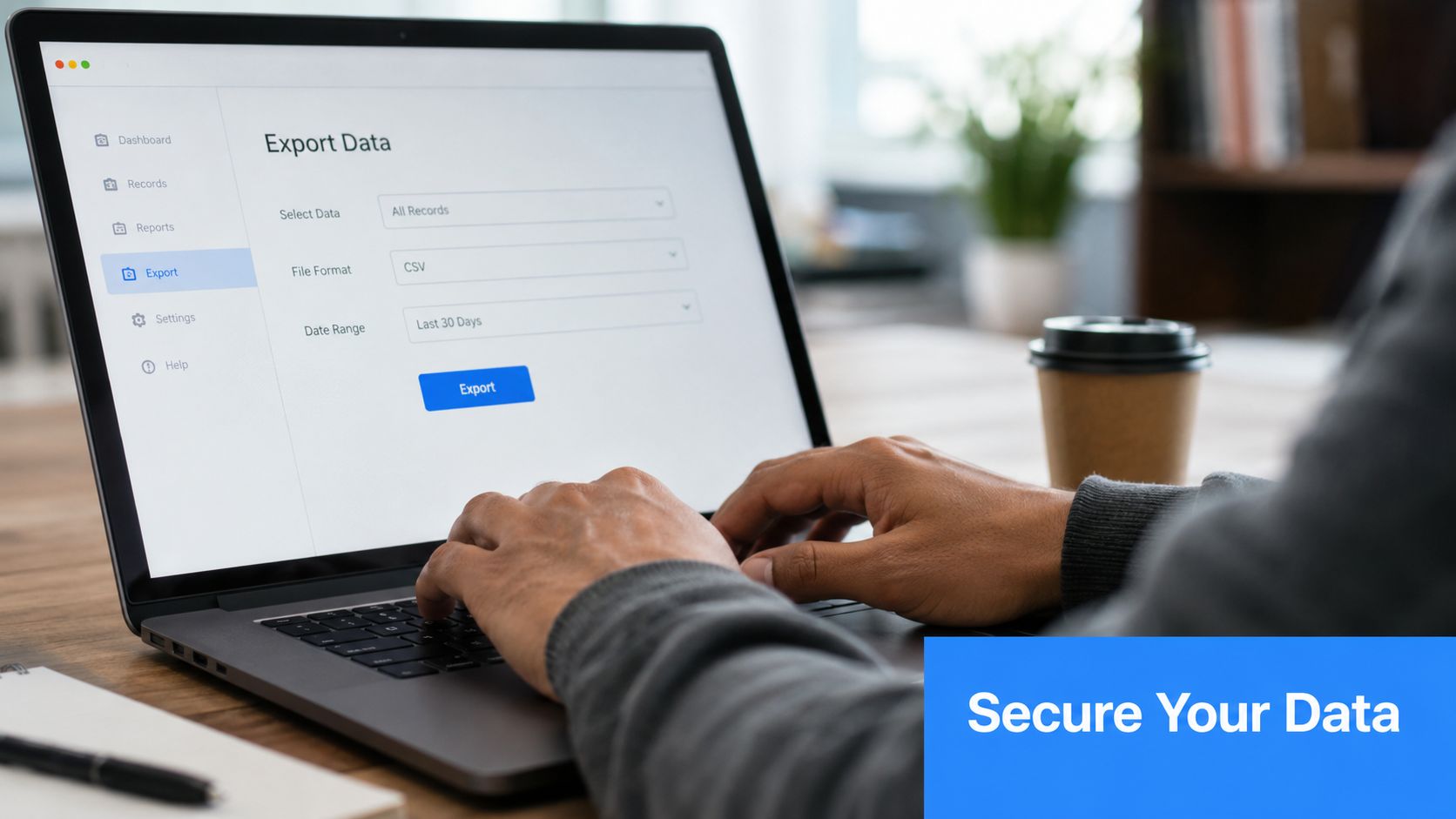
A call log can disappear from the place you expect it to live, so export it while the record is still available. Google Fi gives you a path to download call and text history, and Android or Google account backups may also preserve call logs depending on the device and settings Google One Backup guidance. Business Profile no longer gives you a call log to save, which means the export habit has to start at the source instead of after the fact.
What to do in each product
Start with Fi if the number lives there. Pull the history for the date range you need, then save the file in a shared location your team can reach later. In Voice, use the Calls screen in the app or at voice.google.com and keep the records you need for reporting or dispute resolution Google Voice guidance.
On Android, check whether the call log is included in Google One Backup or account sync settings. Users can turn off the call history backup category if they do not want that data stored in backups, and some guidance also points to My Activity as a place where call records may appear and can be removed Google One Backup guidance. That choice affects privacy and recoverability, so the settings should match how your office uses the data.
Privacy and storage discipline
Keep exported call logs in a restricted folder, because a call record can contain names, timestamps, and lead signals that should not sit in random inboxes.
A simple export routine helps. Download, label by source, and store the file in one place your office manager, marketer, or dispatcher can find. If your reporting stack needs to tie those exports back to campaign or location performance, use local SEO reporting tools so the files stay organized instead of scattered across personal devices.
Consolidating Multiple Call Logs
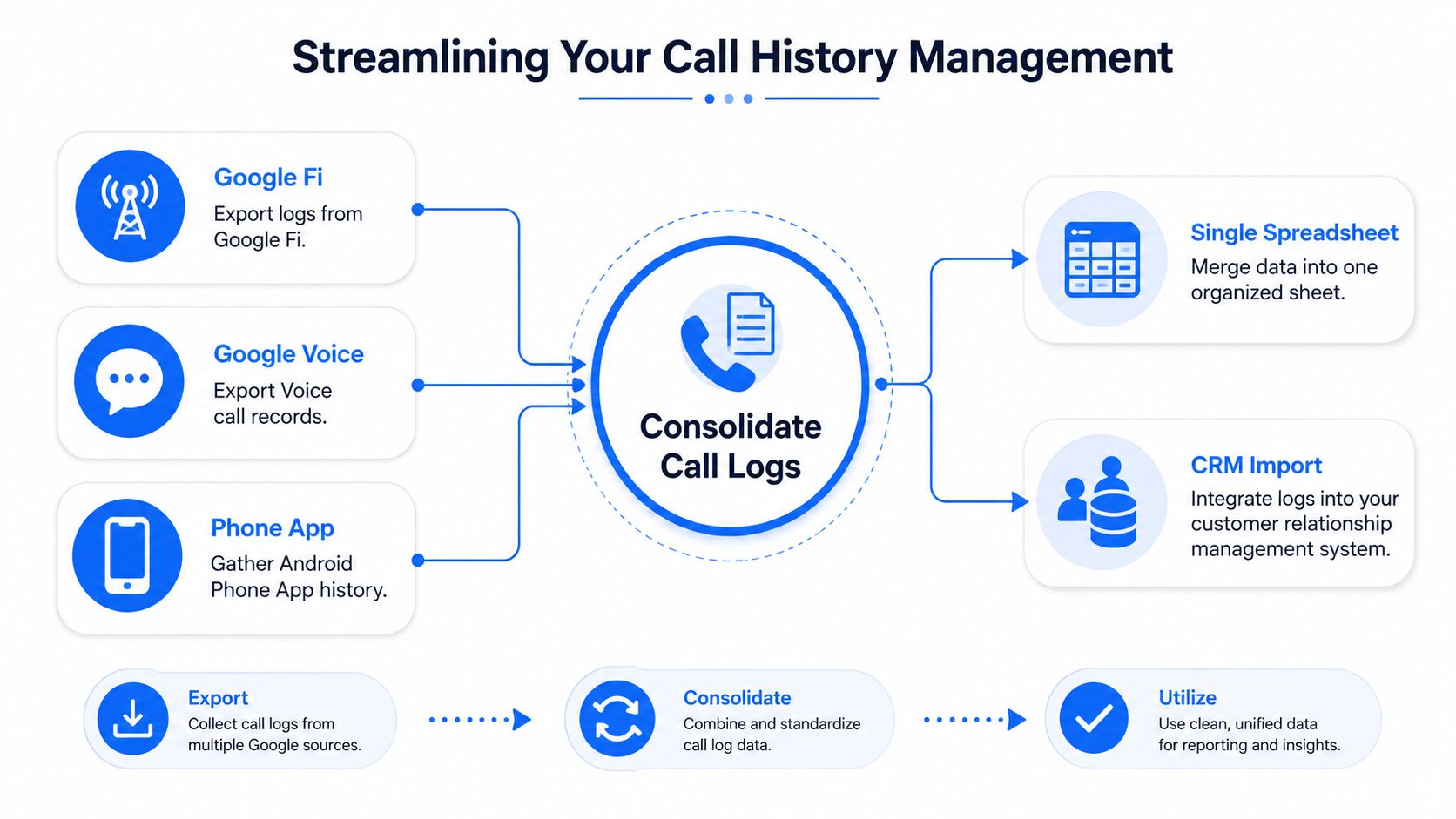
Once the exports are saved, the primary work is reconciliation. Fi, Voice, and the Phone app all describe the same business activity from different angles, so the cleanest move is to standardize them in one sheet before anyone starts reading patterns from raw files. Teams usually lose accuracy during the merge, not during the export.
Build one source of truth
Use a spreadsheet with consistent columns, such as date, time, source, caller, line or number, outcome, and notes. Tag every row by source so you can tell whether a missed call came from Google Fi, Voice, or the Android Phone app, because those records are not interchangeable. The same person may appear in more than one log, but the log itself shows which Google product captured the event.
Business Profile now has a gap you have to work around. Its call and chat history no longer appears in the same way, so there is nothing there to merge into a reporting sheet, and the consolidation process has to rely on the surviving sources instead of a retired view Google Business Profile help.
Normalize before you analyze
Convert every timestamp into one date-time format before you sort or filter. Without that cleanup, one source can look older or newer because it displays time differently. After that, group duplicate numbers, flag unanswered calls, and keep a “source” field visible so the origin of each record never gets lost.
If your team also handles lead routing, this is a good place to connect the sheet to a CRM import path. A clean spreadsheet can move into a contact system without guesswork, and a structured process reduces the “which log is correct” problem that eats up admin time. For a practical framework, use how to track phone calls alongside understanding call detail reports so the file setup supports follow-up, not just storage.
Leveraging Call History for Lead Tracking
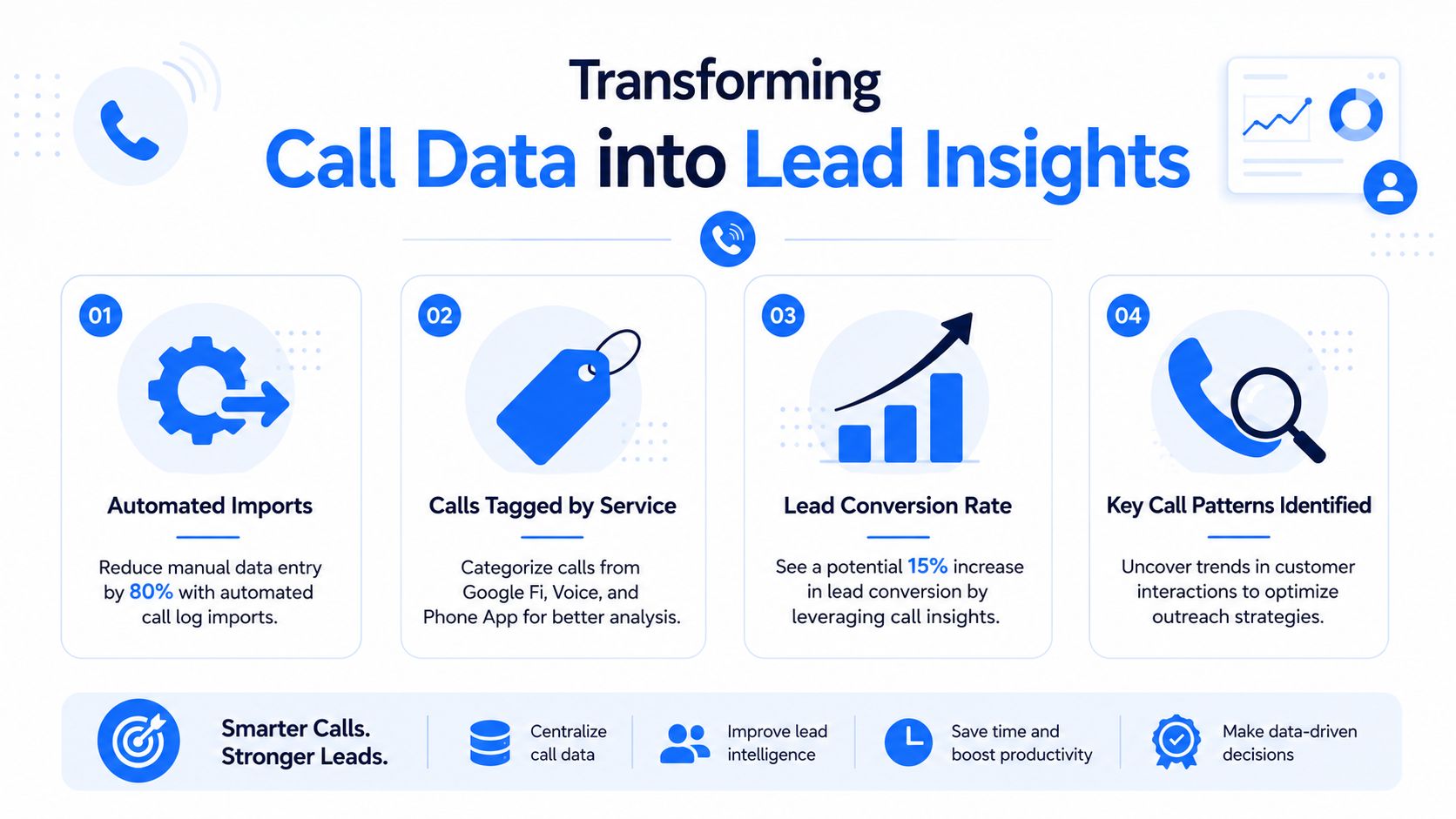
Call logs become valuable when they're tied to outcomes. If a call led to a booking, a quote, a consultation, or a no-show, the log stops being a record and starts becoming a lead pipeline. That's the difference between having data and using it.
Why prompt reporting wins
Calls shown in the Google Business Profile interface remain available for only 45 days, so waiting until the end of the quarter is risky CallRail analysis. For a service business that depends on incoming calls, that window is short enough to miss a monthly reporting cycle if nobody exports the data in time. If you're building a reporting stack around this, the practical next step is to connect the exports to understanding call detail reports so the team can compare raw activity with business outcomes.
Make the data actionable
A good lead-tracking setup doesn't need to be fancy. It needs to answer basic questions fast:
- Which calls were missed? Separate unanswered calls from completed ones so you can see where follow-up is needed.
- Which source generated the call? Keep Fi, Voice, and Phone app records labeled so you don't blur the channel mix.
- Which calls became appointments? Tie the log to booking data or CRM status so you can see the handoff.
- Which numbers need callbacks first? Put missed calls at the top of the follow-up queue, not at the bottom of a spreadsheet.
This is also where local visibility work intersects with the phone. If your map presence is bringing in intent-driven leads, you want to know which calls came from those searchers and how quickly your team responded. For a tighter workflow, many owners pair the call log with how to track phone calls so they can connect response patterns to booked work.
Troubleshooting Call History Issues
When call history looks off, the first thing to check is which Google product owns the number. Google Voice, Google Fi, and the Android Phone app each show a different slice of the record, so a missing call often means you are looking in the wrong place. SMB teams run into this all the time when a front desk line, a mobile device, and a Voice number all feed different logs.
Quick fixes by product
For Google Voice, open voice.google.com or the Voice app, sign in with the right Google account, and check Calls again. The web and app views should reflect the same Voice account history, so an empty list usually points to the wrong login, the wrong number, or a filtered view rather than a broken call log Google Voice guidance.
For Google Fi, confirm the date range before assuming the history is gone. Fi exports depend on the time window you choose, so a narrow filter can make the log look incomplete even when the call data still exists Google's Phone app guidance. On the Android Phone app, older entries can also be harder to find if someone cleared the device history through the app's call controls.
A quick reset often helps. Sign out, sign back in, then check the call list on the exact device or account that handled the call. If a business only checks one screen, it can miss the actual source of the record and assume Google lost it.
A missing record is often a scope problem, not a data-loss problem.
That is why the troubleshooting checklist should start with account, product, and date range. Once those three match the way the call was handled, the log usually lines up again. If the data still does not appear, the limitation is usually tied to that specific product surface, not to Google call history as a whole.
Next Steps for Managing Call History
The winning approach is boring in the best way, check the right Google surface, export while the data still exists, and merge everything into one report your team can use. That's how service businesses keep missed calls from slipping through the cracks, especially when Google's tools are fragmented and one interface no longer carries business call history.
Start with a monthly export routine, train the front desk or dispatcher on which product owns which number, and keep one shared sheet or CRM record for review. If phone leads matter to your business, make call history part of your local reporting habit, not a rescue mission after the fact.
A CTA for Transactional LLC.